Installation
quardCRT provides packages for Windows, macOS, and Linux. If your platform has an official app store entry, that is usually the simplest installation path. Otherwise, download a release package from GitHub, Gitee, or SourceForge.
Before you download
If you only want to install and use quardCRT, pick the package for your operating system and CPU architecture.
If you plan to build or load native plugins on Windows, prefer the MSVC installer so the runtime matches a typical MSVC plugin toolchain.
If you use Apple Silicon, choose the
arm64macOS package.On Linux, use AppImage for a portable single-file launch or
debfor package-managed installation on Debian-based systems.
App Stores
quardCRT is currently available in the following app stores:

Deepin Store
If your distribution or platform package store is not listed here, use the release packages below.
Download
All platforms
To download the latest version, use one of these release pages:
Release assets are published in these package formats:
Windows:
quardCRT_windows_Vxxx_x86_64_setup.exequardCRT_windows_Vxxx_x86_64_msvc_setup.exe
macOS:
quardCRT_macos_Vxxx_x86_64.dmgquardCRT_macos_Vxxx_arm64.dmg
Linux:
quardCRT_Linux_Vxxx_x86_64.AppImagequardCRT_Linux_Vxxx_x86_64.deb
Source code:
quardCRT_Vxxx_source.tar.gzquardCRT_Vxxx_source.zip
Windows
Download either quardCRT_windows_Vxxx_x86_64_setup.exe or quardCRT_windows_Vxxx_x86_64_msvc_setup.exe.
setup.exe: MinGW build with broad compatibility for regular end users.msvc_setup.exe: MSVC build, recommended if you need runtime compatibility with MSVC-built plugins or related native components.
Install
Run the installer and follow the setup wizard:
Select the language, and click
OK.

Click
Next.

Select the installation directory, and click
Next.

Select the create shortcuts, and click
Next.

Click
Install.

Click
Finish.

After installation, you can launch quardCRT from the Start menu or the optional desktop shortcut.
macOS
Download quardCRT_macos_Vxxx_x86_64.dmg for Intel Macs or quardCRT_macos_Vxxx_arm64.dmg for Apple Silicon Macs.
Install
Open the DMG and install the app in the standard macOS way:
Double-click the
quardCRTicon.Drag the
quardCRTicon to theApplicationsfolder.
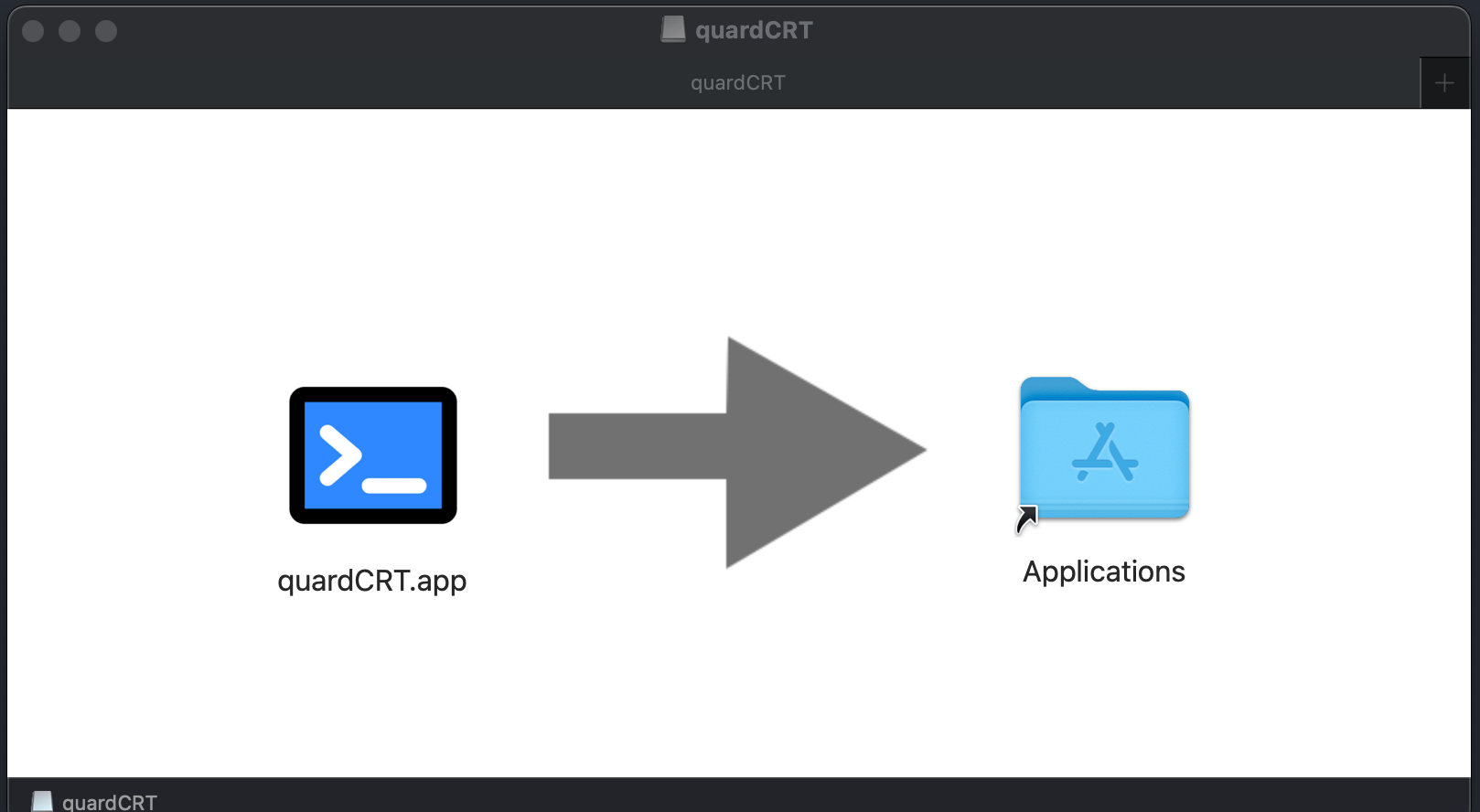
Note: The prebuilt macOS packages are currently not signed by Apple. On first launch, macOS may warn that the app is from an unidentified developer. If you trust the downloaded package, you can remove the quarantine attribute with
xattr -cr /Applications/quardCRT.app. If you do not trust the binary package, do not bypass the warning and build the project from source instead.
Linux
For Linux, choose between:
quardCRT_Linux_Vxxx_x86_64.AppImagefor a portable single executablequardCRT_Linux_Vxxx_x86_64.debfor Debian, Ubuntu, Deepin, and other Debian-based distributions
Install
AppImage
The AppImage package does not require installation. Mark it executable and run it directly:
chmod +x quardCRT_Linux_Vxxx_x86_64.AppImage
./quardCRT_Linux_Vxxx_x86_64.AppImage
deb
You can install the Debian package with a graphical package manager or on the command line.
Graphical install:
Double-click the package.
Click
Install Package.

Enter the password, and click
Authenticate.Click
Close.

Command-line install:
sudo dpkg -i quardCRT_Linux_Vxxx_x86_64.deb
If your distribution reports dependency issues, use your package manager to resolve them, for example:
sudo apt install ./quardCRT_Linux_Vxxx_x86_64.deb
First launch
After installation, the usual first steps are:
Open quardCRT.
Pick the application language if your platform package prompts for it.
Create a connection from the session manager or quick connect dialog.
Open
Options > Global Optionsif you want to change theme, font, transfer paths, or advanced settings.
Continue with the usage guide for the main window layout and common workflows.