Usage
This page explains the main window layout and the most common tasks you will perform after installation.
quardCRT is organized around saved sessions and tab-based terminal workflows. Most users start by opening a quick connection, saving it as a session, and then tuning the global appearance and terminal settings.
Main window overview
The main window is composed of these primary areas:
Menu bar: complete access to commands and settings.
Toolbar: quick access to commonly used actions.
Sidebar: session manager and plugin area.
Tab pages: one or more live sessions.
Terminal area: the active terminal or remote desktop content.
Status bar: state and prompt information.

First things to try
Quick connect
Use File > Quick Connect when you want to open a one-off connection without creating a fully prepared saved session first. Select a protocol, fill in the required connection fields, and open it in the current window or a new tab.
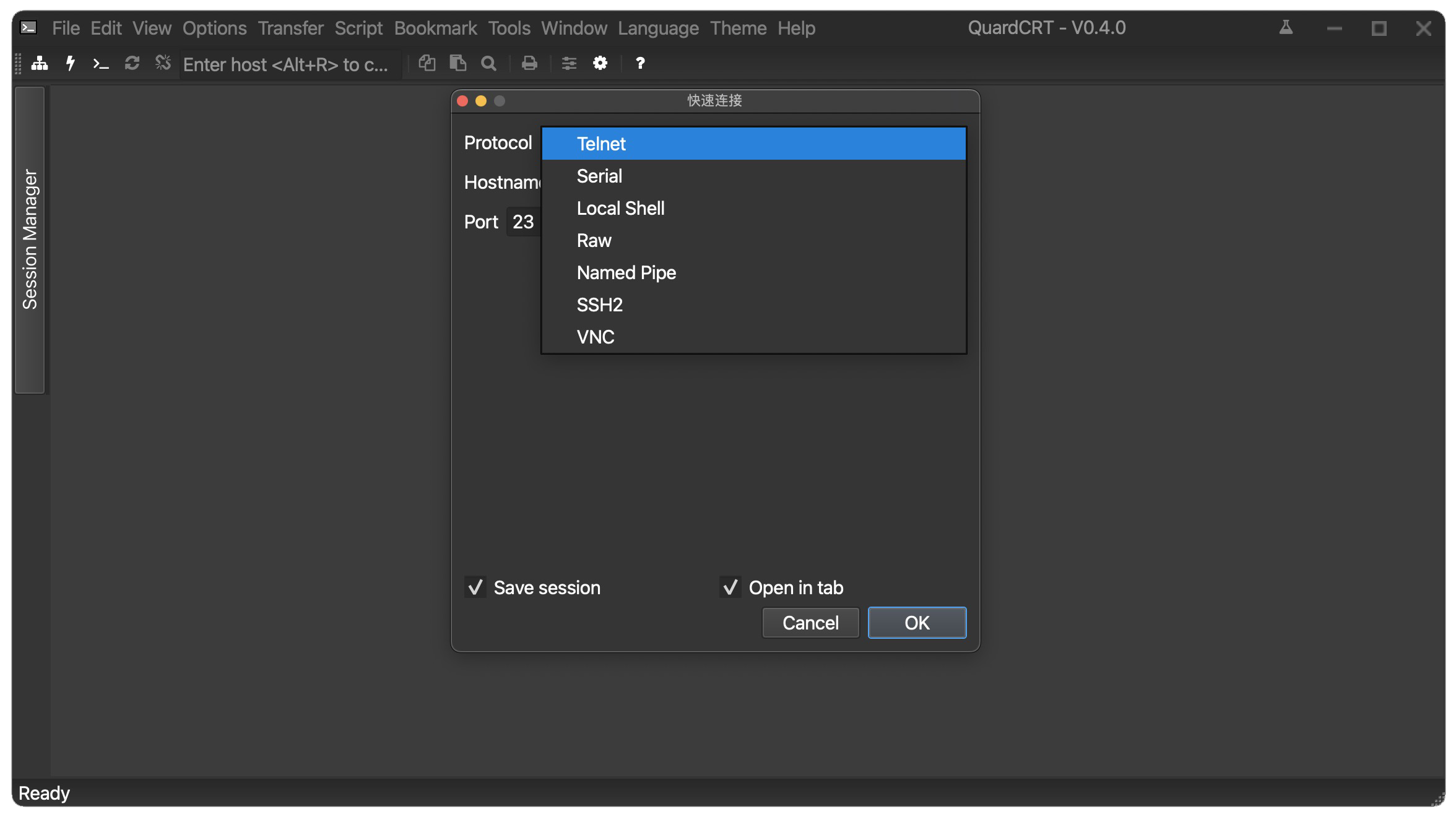
Saved sessions
Use the session manager in the left sidebar to browse saved sessions, reconnect to recent targets, and organize entries into folders. Saved sessions are the recommended way to manage frequently used SSH, serial, raw socket, or VNC targets.
Local shell
If you only need a local terminal, use File > Connect Local Terminal. This creates a terminal tab on the current machine without setting up a remote connection.
Appearance and language
Use the Theme and Language menus for fast UI changes. For deeper adjustments such as fonts, background images, cursor style, and transfer directories, open Options > Global Options.
Menu Bar
The menu bar contains the full command surface of quardCRT: File, Edit, View, Options, Transfer, Script, Bookmark, Tools, Window, Language, Theme, and Help.
File
New Window
New a new QuardCRT window. Shortcut:
Ctrl + Shift + NConnect
Open the session manager, select the existing connection information, and establish a session. Shortcut:
Alt + CQuick Connect
Pop up the quick connect dialog, add new connection information, and establish a session. Shortcut:
Alt + QConnect in Tab/Tile…
Open the session manager, select the existing connection information, and establish a session. Shortcut:
Alt + BConnect Local Terminal
Quickly open the local terminal. Shortcut:
Alt + TReconnect
Reconnect the current session.
Reconnect All
Reconnect all sessions. Shortcut:
Alt + ADisconnect
Disconnect the current session.
Disconnect All
Disconnect all sessions.
Clone Session
Clone the current session. Shortcut:
Ctrl + Shift + TLock Session
Lock/Unlock the current session. After the session is locked, no input operation can be performed.
Log
Turn on/off the log recording of the current session. Record all input and output in the session in the form of a text file.
Raw Log
Turn on/off the raw log recording of the current session. Record all input and output in the session, including control characters, in the form of a binary file.
Hex View
Pop up the hexadecimal view to display the HEX value of the session output data synchronously.
Exit
Exit QuardCRT.
Edit
Copy
Copy the selected content to the clipboard. Shortcut:
Ctrl + InsertPaste
Paste the content from the clipboard. Shortcut:
Shift + InsertCopy and Paste
Copy the selected content and paste it to the cursor.
Select All
Select all content. Shortcut:
Ctrl + Shift + AFind
Display the search bar. Shortcut:
Ctrl + FPrint Screen
Print the current session content.
Screen Capture
Capture a high-resolution screenshot of the current terminal area.
Session Export
Export the current session content. Support text and HTML formats.
Clear Scrollback
Clear the scrollback. After this operation, the content that is not displayed in the session will be cleared, leaving only the currently displayed content.
Clear Screen
Clear the screen. After this operation, the currently displayed content in the session will be cleared.
Clear Screen and Scrollback
Clear the screen and scrollback. After this operation, all content in the session will be cleared.
Reset
Reset the session. After this operation, all content in the session will be cleared, and the session status will be reset.
View
Zoom In
Zoom in the terminal content. Shortcut:
Ctrl + =Zoom Out
Zoom out the terminal content. Shortcut:
Ctrl + -Reset Zoom
Reset the terminal content zoom.
Menu Bar
Show/hide the menu bar. Shortcut:
Alt + UToolbar
Show/hide the toolbar.
Status Bar
Show/hide the status bar.
Command Window
Show/hide the command window.
Connect Bar
Show/hide the connect bar in the toolbar.
Sidebar
Show/hide the sidebar.
Window Opacity
Set the window to allow transparent display. (Only valid on supported platforms)
Vertical Scrollbar
Show/hide the vertical scrollbar.
Always On Top
Set the window to always be on top.
Full Screen
Switch to full screen mode. Shortcut:
Alt + Enter
Options
Session Options
Open the current session options settings window.
Global Options
Open the global options settings window.
Real-time Save Options
Real-time save the changes to the options to the configuration file. (Generally, there is no need to open this option. The program will automatically save at regular intervals, and automatically save the configuration file at the appropriate time, such as when exiting the program)
Save Settings Now
Manually save the changes to the options to the configuration file.
Transfer
Send ASCII…
Send ASCII text to the session.
Receive ASCII…
Receive ASCII text from the session.
Send Binary…
Send binary data to the session.
Send Kermit…
Send files using the Kermit protocol.
Receive Kermit…
Receive files using the Kermit protocol.
Send Xmodem…
Send a file using the Xmodem protocol.
Receive Xmodem…
Receive a file using the Xmodem protocol.
Send Ymodem…
Send files using the Ymodem protocol.
Receive Ymodem…
Receive files using the Ymodem protocol.
Zmodem Upload List…
Pop up the Zmodem upload list window.
Start Zmodem Upload
Start Zmodem upload.
Start TFTP Server
Pop up the TFTP server settings window and start the TFTP server.
Script
Scripting support is documented in the scripts guide. In releases that include scripting support, this menu is used to run and manage scripts. In older builds, some script-related actions may be unavailable.
Bookmark
Add Bookmark
Add a bookmark. Select a directory and save it as a bookmark. Click the bookmark to quickly open the local terminal in that directory.
Remove Bookmark
Remove the bookmark.
Clear All Bookmarks
Clear all bookmarks.
Tools
Keymap Manager
Open the keyboard mapping settings window.
Create Public Key…
Create a public key.
Publickey Manager
Open the public key manager.
Window
Tab
Sessions will be displayed in tab pages.
Tile
Sessions will be displayed in tile form.
Cascade
Sessions will be displayed in cascade form.
Language
Simplified Chinese
Instantly switch to Simplified Chinese language.
Traditional Chinese
Instantly switch to Traditional Chinese language.
Russian
Instantly switch to Russian language.
Portuguese (Brazil)
Instantly switch to Portuguese (Brazil) language.
Korean
Instantly switch to Korean language.
Japanese
Instantly switch to Japanese language.
French
Instantly switch to French language.
Spanish
Instantly switch to Spanish language.
English
Instantly switch to English language.
German
Instantly switch to German language.
Czech
Instantly switch to Czech language.
Arabic
Instantly switch to Arabic language.
Theme
Light
Switch to the light theme.
Dark
Switch to the dark theme.
Help
Help
Open the help document. That is, open this document through the browser.
Keyboard Shortcuts Reference
Open the keyboard shortcuts reference prompt window.
Check for Updates
Check if QuardCRT has a new version. (The current version does not have an automatic update function, and will open the QuardCRT official website through the browser to guide users to download the latest version)
About
Display the version information of QuardCRT.
About Qt
Display the version information of Qt.
Toolbar
The toolbar exposes a subset of frequently used menu actions as icons, which is useful when you need to reconnect, copy or paste, search, print, open settings, or trigger connection-related commands quickly.
Sidebar
The sidebar contains the session manager and plugin-provided panels. In daily use, this is the fastest place to browse saved sessions, filter by name, and reopen existing connections.
Tab Pages
Tabs are one of quardCRT’s core workflows. You can open multiple sessions at once, clone tabs, rearrange them, or move them into split and floating layouts depending on your workflow.
Status Bar
The status bar shows prompt information, connection state, and contextual session details.
Suggested next reading
Read configuration to tune fonts, themes, scrollback, transfer paths, and advanced options.
Read scripts if you want automation.
Read plugins if you want to extend quardCRT with Qt plugins.